Letterhead, logo, signatures and stamps
Upload your logo, signature and company stamp once. ForgeDocs places them on every document it generates, exactly where you set them.
On this page
All of this lives on the Company page, under your company details. Uploads are kept on the server and are only ever shown to signed-in members of your workspace, so a signature image cannot be fetched by anyone outside it.
Logo and watermark
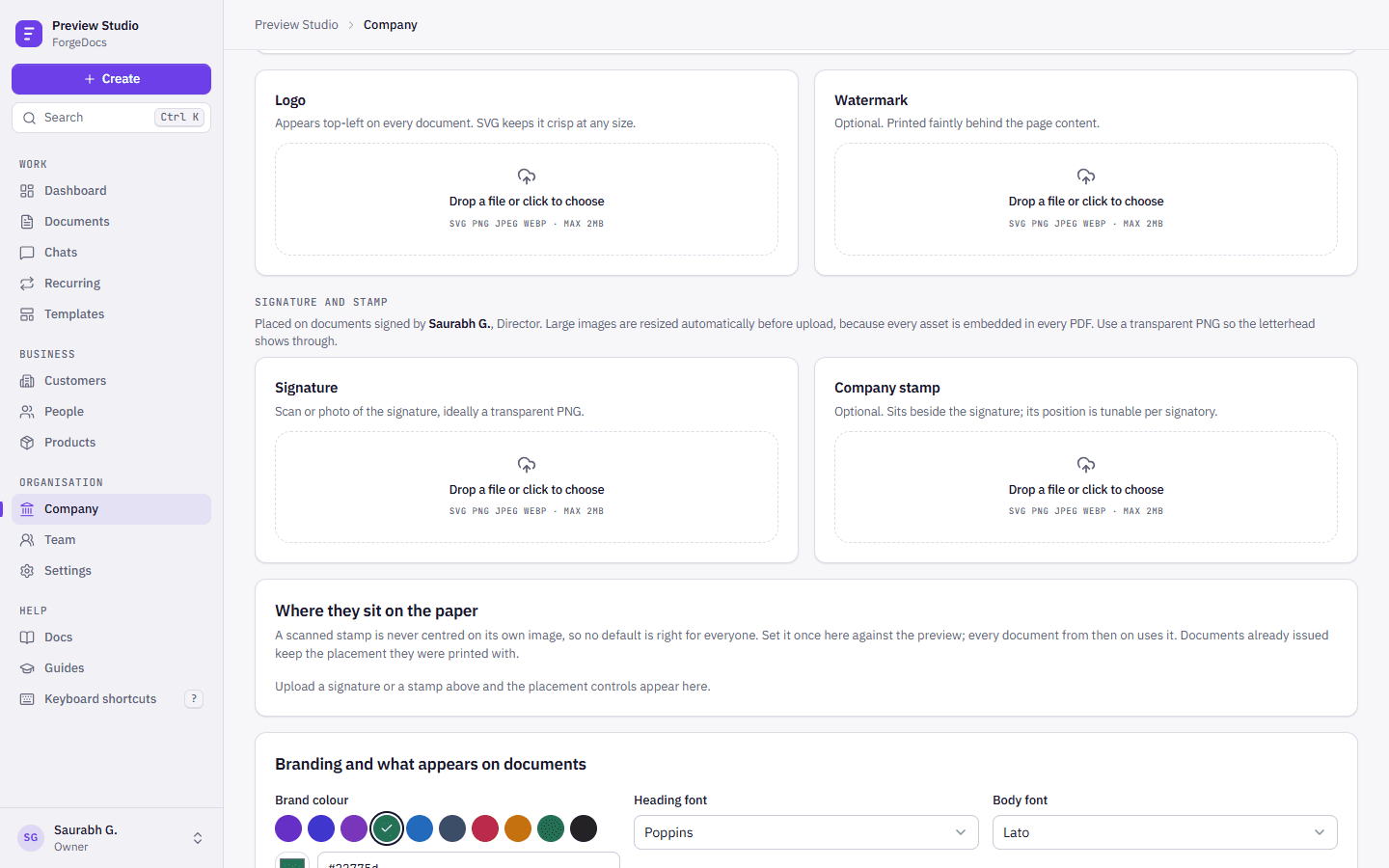
The logo appears at the top left of every document. An SVG stays crisp at any size; a PNG works too. The watermark is optional and prints faintly behind the page content.
Large images are resized before upload, because every image is embedded in every PDF and a 6 MB photo of a logo would make each invoice a 6 MB file.
Signatures and stamps
A signature belongs to a signatory: the person whose name and designation print under it. Upload a scan or a photo of the signature, ideally a PNG with a transparent background so the paper shows through. The company stamp is optional and sits beside the signature.
Placing them on the paper
A scanned stamp is rarely centred in its own image, so no default suits everyone. Under Where they sit on the paper, set the signature height, the stamp’s size, position and tilt against a preview drawn to scale in millimetres. The defaults are a 16 mm signature and a 30 mm stamp turned 8 degrees. Every document from then on uses your placement; documents already issued keep the placement they were printed with.
Choosing who signs
Each document form has a Signed by choice. Pick the signatory whose signature and stamp should appear. A document generated without a signatory carries no signature.
Brand colour and fonts
Brand colour is the accent on your documents: titles, rules and highlighted bands. Choose a heading font and a body font from Poppins and Lato, which are embedded in the PDF so it looks the same on every machine.
Once you change the brand colour from the default, the app picks it up too: buttons and highlights in your workspace use your colour instead of the ForgeDocs violet.
| Field | What it does | Example |
|---|---|---|
| Closing line on invoices | Printed beside the total. Leave it blank to print nothing. | Thank you for your business. |
| Footer text | Printed at the left of the page footer. Defaults to your website. | kaveristeel.in |
What appears on documents
Holding a value does not print it: each of these switches decides whether a fact you have saved appears on paper.
| Switch | What it prints | Default |
|---|---|---|
| Address | Your street address in the letterhead. | On |
| Phone and Email | Your contact details in the letterhead. | On |
| Website | Your website, in the page footer. | On |
| Your GSTIN | Your GST number. Required on a valid tax invoice. | On |
| Customer’s GSTIN | The customer’s GST number, which they need to claim input tax credit. | On |
| CIN | Your corporate identity number. | On |
| PAN | Your PAN. No document requires it. | Off |
| Bank details | The bank block on invoices and quotations. | On |
| Company name beside the logo | Turn it off if your logo already spells out the name. With no logo the name always shows. | On |
Next: invite your team.